We are using visual studio 1.69 code editor for this project.
To use Angular your computer should have node.js and angular installed.
To install node see this and to install angular see this
To check the version of node.js use the node -v command
and to check the angular version use the ng version command
here we are using
Angular CLI: 14.1.0
Node: 16.15.0
Package Manager: npm 8.5.5
OS: win32 x64
Creating Folder
We have created a folder angular project in G:\ drive
we will save all our angular projects there.
On the Visual Studio code editor menu click on Terminal then new terminal (CTRL+SHIFT+).
It will open a new terminal
then first move to G:\angularprojectC:> cd G:
PS G:> cd .\angularproject\
How to create First angular app
To create a new Angular project useng new First-app
here ng new is the command and First-app is the name of the project.
It will ask a few questions
Would you like to add Angular routing?
select No
Which stylesheet format would you like to use? CSS
Enter
This will generate all files and components of angular.
PS G:\angularproject> ng new First-app
? Would you like to add Angular routing? No
? Which stylesheet format would you like to use? CSS
CREATE First-app/angular.json (2937 bytes)
CREATE First-app/package.json (1040 bytes)
CREATE First-app/README.md (1062 bytes)
CREATE First-app/tsconfig.json (863 bytes)
CREATE First-app/.editorconfig (274 bytes)
CREATE First-app/.gitignore (548 bytes)
CREATE First-app/.browserslistrc (600 bytes)
CREATE First-app/karma.conf.js (1426 bytes)
CREATE First-app/tsconfig.app.json (287 bytes)
CREATE First-app/tsconfig.spec.json (333 bytes)
CREATE First-app/.vscode/extensions.json (130 bytes)
CREATE First-app/.vscode/launch.json (474 bytes)
CREATE First-app/.vscode/tasks.json (938 bytes)
CREATE First-app/src/favicon.ico (948 bytes)
CREATE First-app/src/index.html (294 bytes)
CREATE First-app/src/main.ts (372 bytes)
CREATE First-app/src/polyfills.ts (2338 bytes)
CREATE First-app/src/styles.css (80 bytes)
CREATE First-app/src/test.ts (749 bytes)
CREATE First-app/src/assets/.gitkeep (0 bytes)
CREATE First-app/src/environments/environment.prod.ts (51 bytes)
CREATE First-app/src/environments/environment.ts (658 bytes)
CREATE First-app/src/app/app.module.ts (314 bytes)
CREATE First-app/src/app/app.component.html (23083 bytes)
CREATE First-app/src/app/app.component.spec.ts (965 bytes)
CREATE First-app/src/app/app.component.ts (213 bytes)
CREATE First-app/src/app/app.component.css (0 bytes)
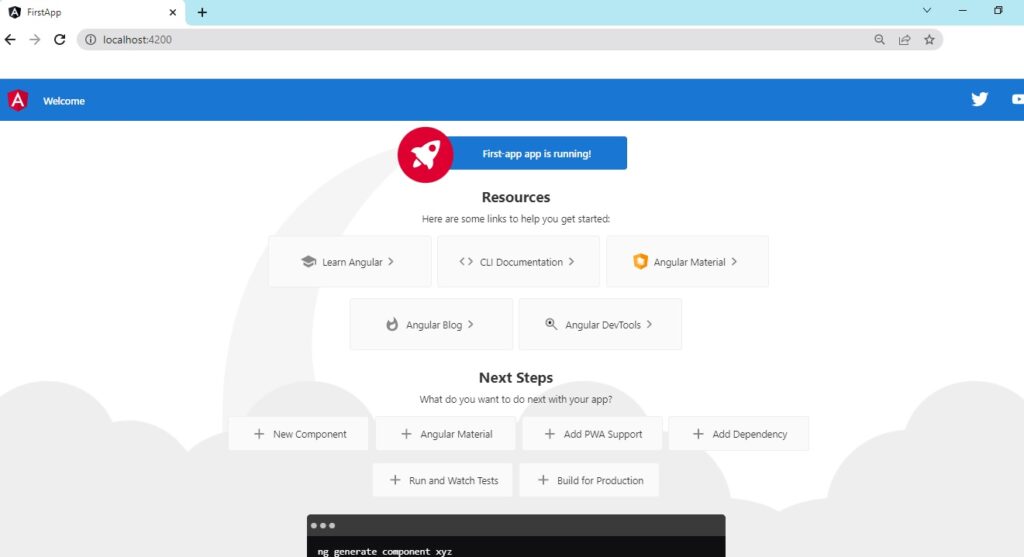
To run this project typeng serve
this will run the project on localhost:4200/
open the URL in the browser.
You will see the following output
Adding Your own Content
To change the above content goto
src->app->app.component.html
remove all content.
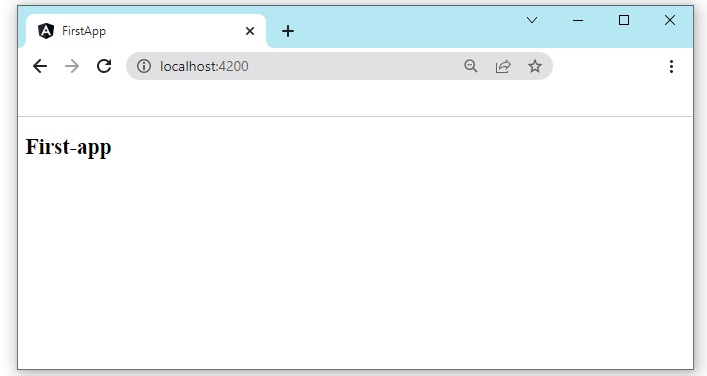
then put <h2>{{title}}</h2>
Then check the browser.
Adding More Content
It will show the Title name of your project.
Adding data to app.component.html
To add static content we can directly write in app.component.html
To add dynamic content you have to add content in app.component.ts
We added title description and author in class AppComponent as below
  import { Component } from '@angular/core';

@Component({
  selector: 'app-root',
  templateUrl: './app.component.html',
  styleUrls: ['./app.component.css']
})
export class AppComponent {
  title = 'My First App';
  description="This is my first app in angular";
  author="Manish";
}
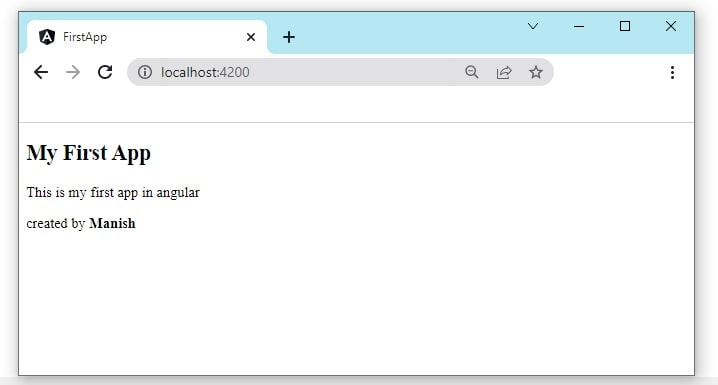
in app.component.html
{{title}}
{{description}}
created by {{author}}
To access app.component.html we use interpolation.
It will produce the following output